
Configuring Other Services for Leganto
See also Configuring Leganto Integration Profiles,Integrating with the UK's Digital Content Store (DCS), and Integrating Leganto with the Copyright Clearance Center (CCC).
Some external services used by Leganto are configured using Alma, such as LDAP and email. See Alma Administration for details.
Other external services are configurable by the user in Leganto and do not require any specific administration by a Leganto administrator, including:
- Analytics
- Zotero citation manager
- any others that appear in Leganto but are not listed in this guide
Configuring When the Instructor Role is Automatically Added to a User
To enable or disable adding the instructor role to users loaded by the course loading integration profile, see Configuring Course Loading.
Alma automatically assigns the Instructor role to users that are added as collaborators to a list, either manually in Alma or using the course loading integration profile. In Leganto, only users that already have the Instructor role can be added to a list.
You can have Alma automatically add the Instructor role to users it identifies as instructors who log in from the CMS (LTI checks the roles parameter for "instructor"). See Mapping CMS Roles to Instructors in Leganto.
Configuring Recommendation Services
You can enable recommendation services in Leganto. For the bX Recommender Service, you also need a bX token from Ex Libris. List recommendations appear in the right pane beside the list; citation recommendations appear at the bottom of each citation or item page. Recommendations only appear for owners or collaborators of a reading list.
On the Leganto Features page (Configuration Menu > Leganto > Features > Leganto Features), enter one or more values for recommendations. Separate multiple values by commas.
- bX Recommendation Service (citation):bx. You must also set the bx_token parameter (Configuration Menu > Leganto > General > External Integration > BX_Token) to the token supplied by Ex Libris.
- Shelf recommendations (citation):shelf_browsing. This recommends other titles that are physically located on the same or adjacent shelves near the citation.
Enabling and Configuring EndNote Fusion
You can enable EndNote Fusion so that instructors can add citations to reading lists and/or Collection in Leganto.
When enabled, students can export to EndNote Fusion.
On the Leganto Customer Setting page (Configuration Menu > Leganto > General > External Integrations), set the parameter EndNote_Fusion_sso to true for end users to use the SSO authentication method. If either field is empty, end users see the regular EndNote Fusion authentication.
The following EndNote Fusion settings are configured in Alma (Configuration Menu > Leganto > General > Labels):
| Code | Description |
|---|---|
| EndNote_Fusion.export.invalidCredentials | Displays a message when invalid credentials have been entered. |
| citation.exportToEndNote_Fusion.falied | Displays a message when a citation was not successfully exported to EndNote Fusion. |
| citation.exportToEndNote_Fusion.succeeded | Displays a message when a citation was successfully exported to EndNoteFusion. |
| EndNote_Fusion.folder.name.references | Displays Citations as title of the automatically created destination folder for exported items. |
| list.exportToEndNote_Fusion.falied | Displays a message when a list was not successfully exported to EndNote Fusion. |
| list.exportToEndNote_Fusion.succeeded | Displays a message when a list was successfully exported to EndNote Fusion. |
| EndNote_Fusion.folder.name.reading.list | Displays New Reading Lists as the title of the automatically created destination folder for exported lists. |
| section.exportToEndNote_Fusion.failed | Displays a message when a section was not successfully exported to EndNoteFusion. |
| section.exportToEndNote_Fusion.succeeded | Displays a message when a section was successfully exported to EndNote Fusion. |
Enabling the Rialto Search Scope
You can enable the Rialto search scope so that librarians can search and add Rialto items to reading lists from within Leganto. This is done using the display_rialto_search parameter in the Leganto Features table (Configuration Menu > Leganto > Features > Leganto Features).
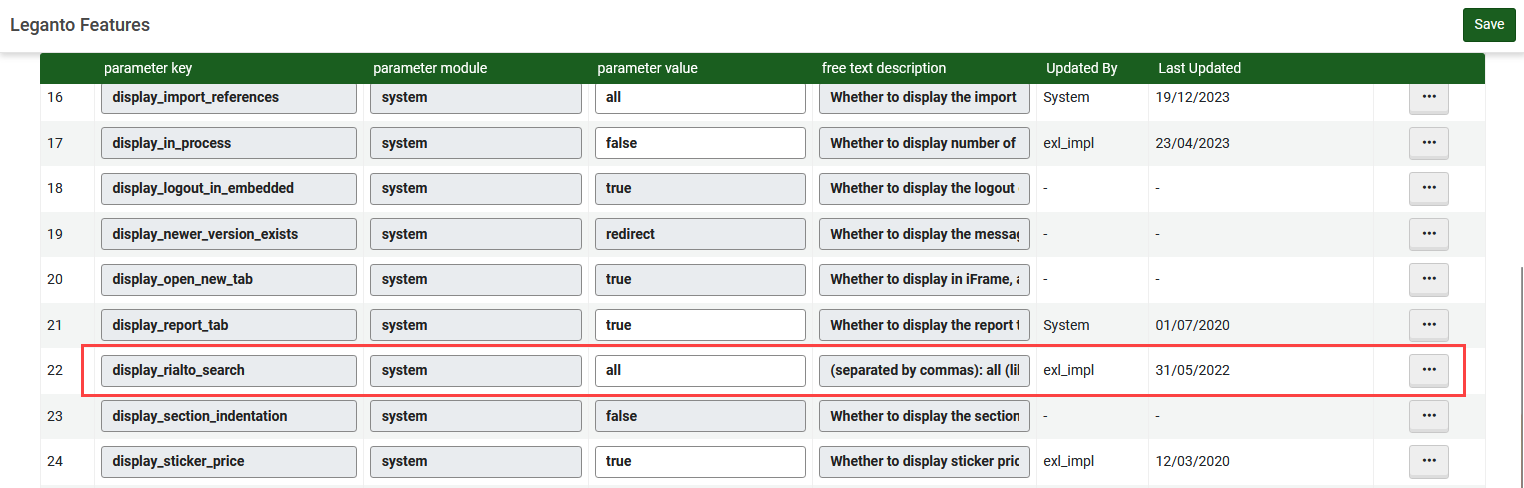
The following values may be entered for the parameter:
-
all - enables Rialto searches for librarians and instructors
-
librarians - enables Rialto searches only for librarians
-
instructors - enables Rialto searches only for instructors
-
blank - disables Rialto searches for everyone
When using the Rialto search scope, Leganto does not perform a resource locate.
Enabling Google Preview
You can enable Google Book Preview for citations.
On the Leganto Features page (Configuration Menu > Leganto > Features > Leganto Features), set the parameter google_book_preview to true.
Enabling Mendeley
You can enable Mendeley, so that instructors and students add citations to reading lists and/or My Collection in Leganto.
On the Leganto Customer Setting page (Configuration Menu > Leganto > General > External Integrations), set the parameters mendeley_client_id and mendeley_secret. After setting the parameters on the Leganto side, you need to configure the Mendeley app. For more information, see Mendeley in the developer's network documentation.
Configuring the Display of British CLA Copyright Information
CLA information appears in Leganto when the parameter copyright_region is set to UK, see Configuring Other Settings. Also see Integrating with the UK's Digital Content Store (DCS).
- Configure the customer parameter CLA_info_in_leganto to true or false(Configuration Menu > Leganto > Features > Leganto Features).
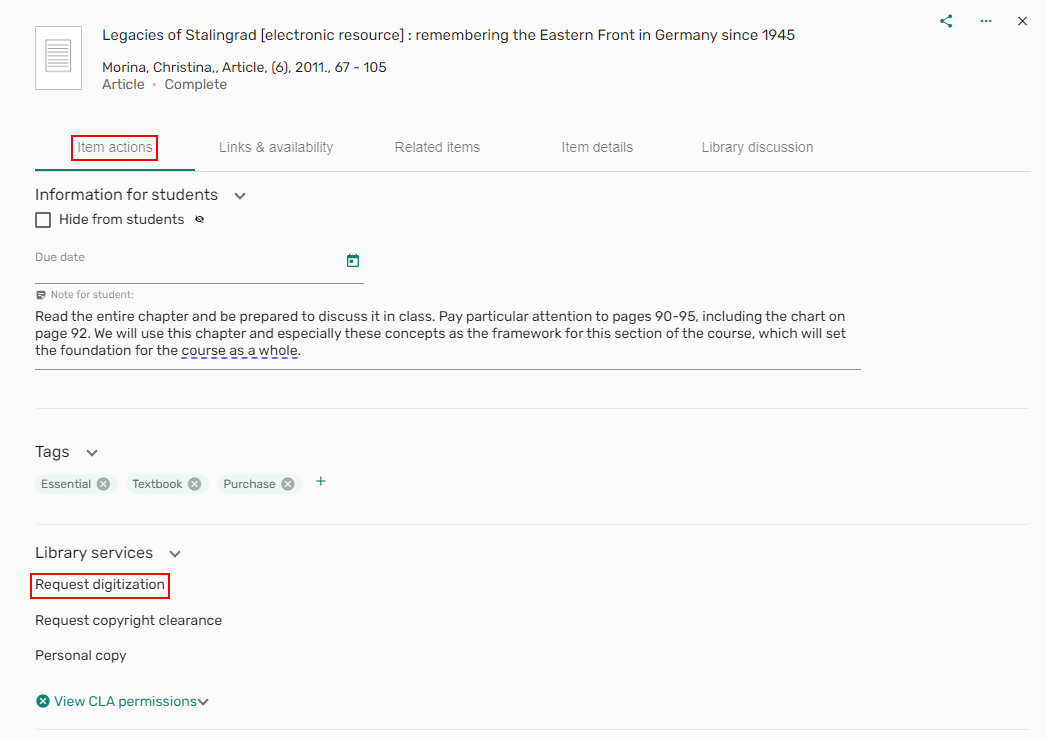 Digitization request
Configuring Useful Links
On the Leganto Links mapping table (Configuration Menu > Leganto > Features > Links), you can configure a static list of links that appear in Leganto.

You can add and remove links. For more information about mapping tables, see Mapping Tables.
The maximum length for a label is 200 characters. While there is no limit to the number of links you can add, in order not to disrupt the layout on the Leganto screen, a limit of around seven is suggested.
The Label that appears in the UI can be translated using the Customer Labels code table, as explained here.
You can select which users can view your custom links by selecting All,Patron, or Staff from the Visibility dropdown list
Enabling General Electronic Services in Leganto
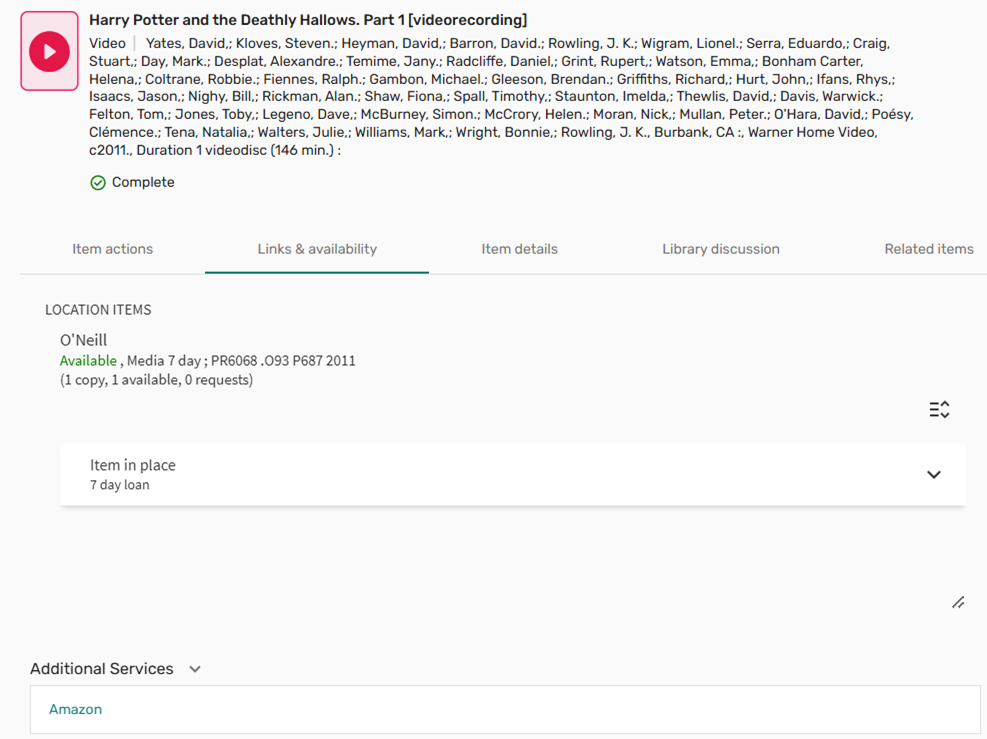
You enable general electronic services to appear in Leganto the same as they do in Primo. For more information see Adding a General Electronic Service and Configuring the Order of General Electronic Services.
- Set the customer parameter general_electronic_services to true(Configuration Menu > Leganto > Features > Leganto Features).
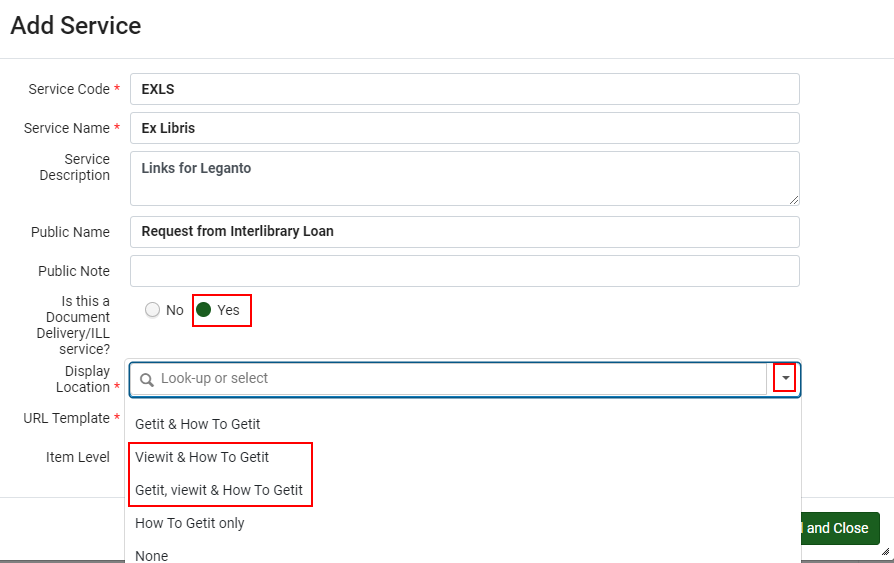
- Open the General Electronic Services Configuration page (Configuration Menu > Fulfillment > Discovery Interface Display Logic > General Electronic Services) and select Add Service.
- Set Is this a Document Delivery/ILL service to Yes.
- Set the Display Location to Viewit & How To Getit or Getit, viewit & How To Getit.
When configured, the links are displayed on the Links & availability tab.
Enabling Third Iron's LibKey Functionality
Third Iron's LibKey functionality is enabled by inserting Third Iron's LibKey APIkey and Client ID into the browzine_api_key and browzine_client_id parameters found in the External Integrations table (Configuration Menu > Leganto > General > External Integrations).
For citations that have a DOI, check Third Iron's LibKey whether it is supported. If supported, you see a Read article link.

The following figure shows a citation's full display when Third Iron's LibKey is configured, a DOI exists, and a file has been uploaded to the reading list.

If you subscribe to the LibKey service and want to enable this feature, please contact Third Iron support to receive your Library ID and API Key, which then can be configured in Alma.
Enabling Unpaywall
You can enable Unpaywall to allow students and instructors to view open-access PDF versions of scholarly articles when available for items that include a DOI.
To activate this feature, set the unpaywall parameter (Configuration > Leganto > General > External Integration) to true(default false).
When this integration is enabled, PDF files are displayed in the View online section of the item (if a PDF is available).
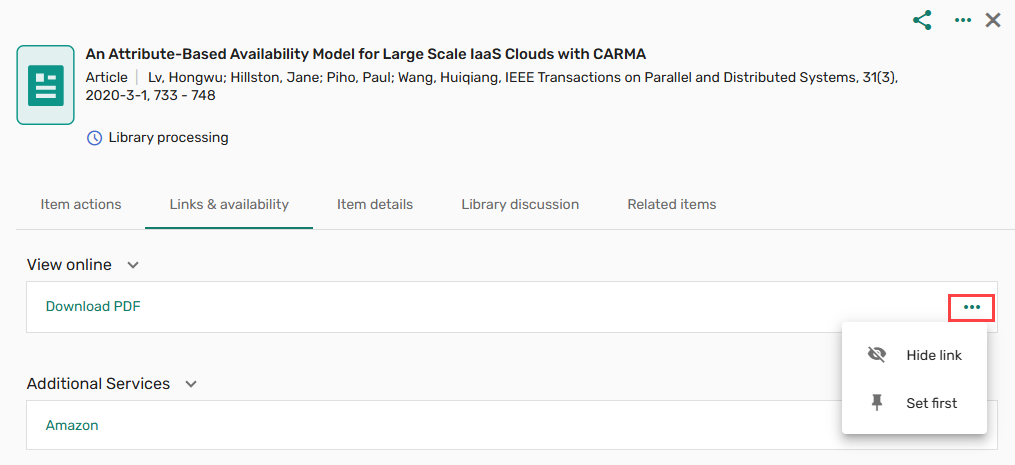
You can also find the Download PDF option when you open an item’s Full details and navigate to Links & availability.
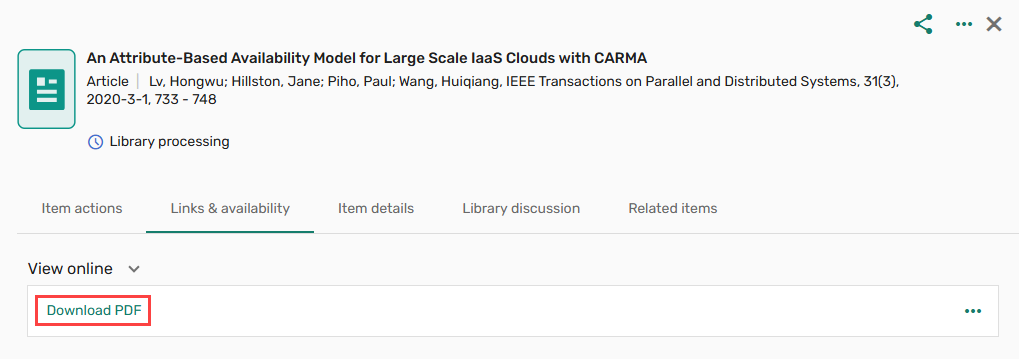
Select the ellipse menu (...) next to Download PDF to set the desired display (e.g., hide the option or place it at the top of the Links & availability section).
Link to a Digitized Version of an Item in HathiTrust
A link to a digitized version of an item on HathiTrust is displayed on a Leganto citation's brief, when relevant.
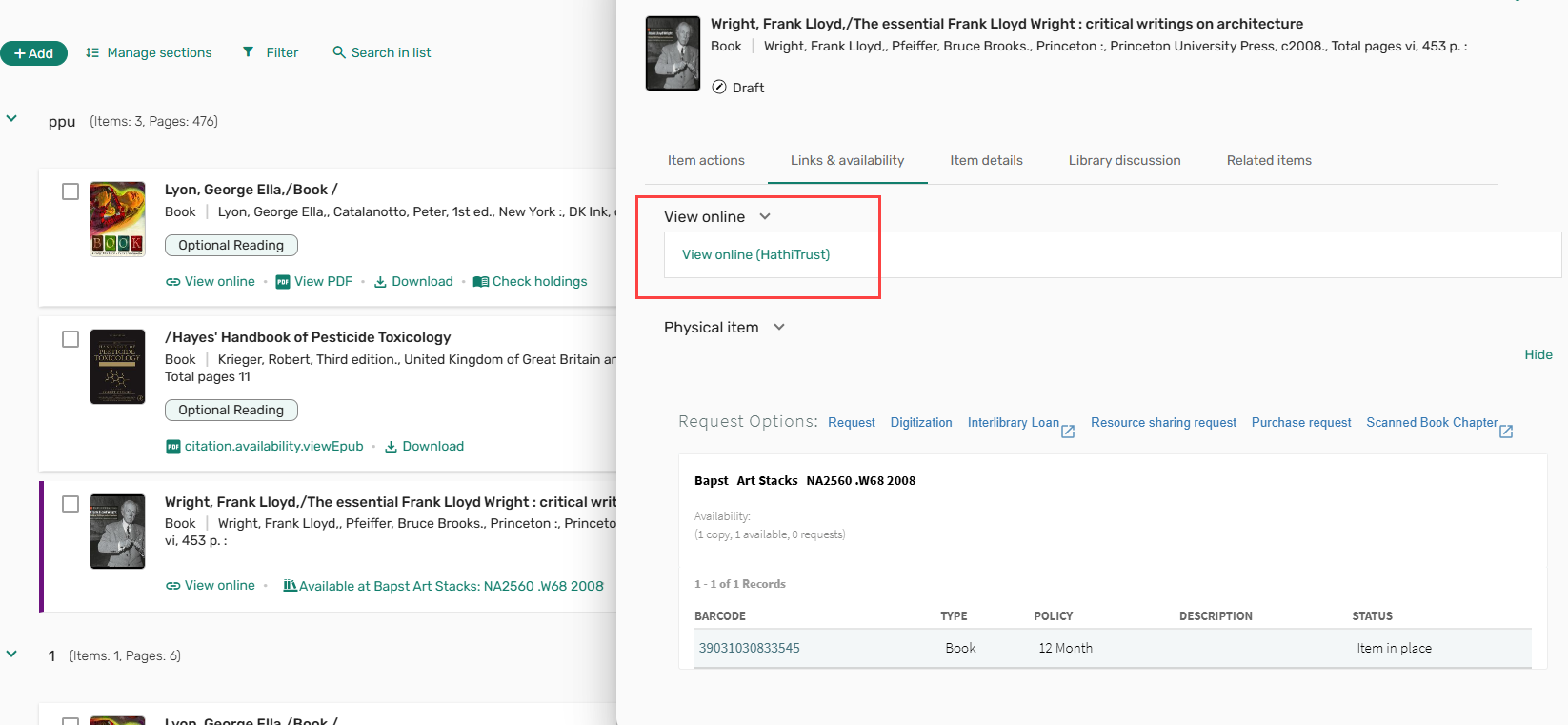
The HathiTrust link is displayed under the following conditions:
- The citation has an OCLC Number value.
- A digitized version of the item is available in HathiTrust.
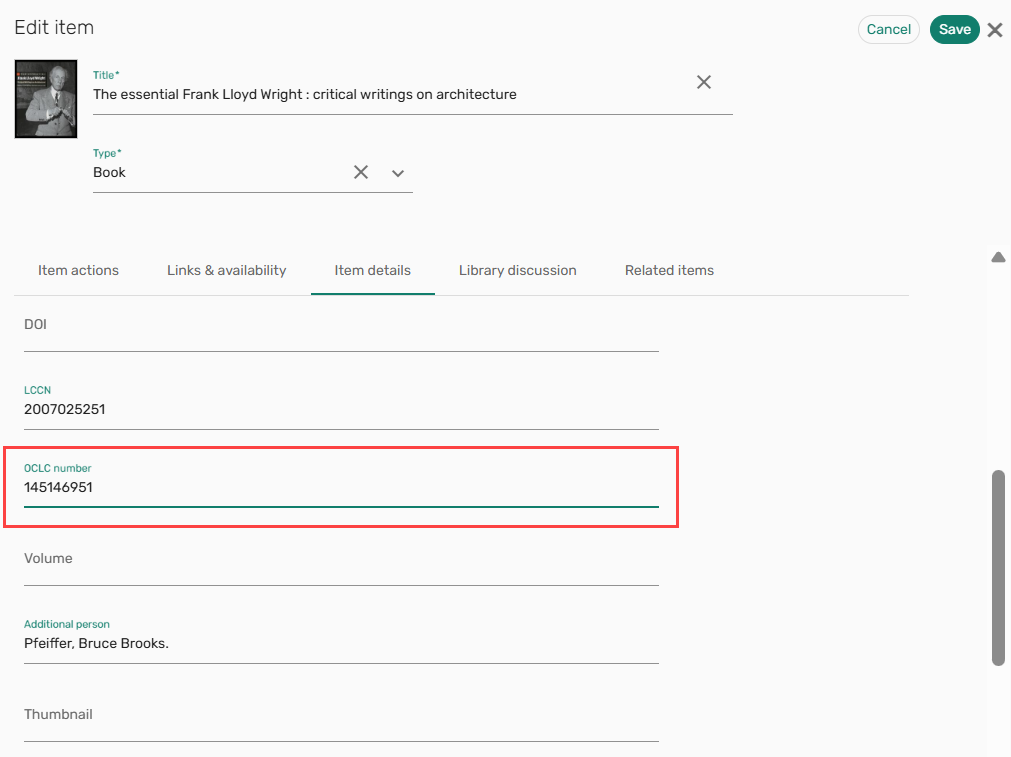 HathiTrust Link Displayed for Citations with OCLC Number Value
This functionality is based on the Primo plugin developed by the University of Minnesota.
To activate this functionality, set the display_hathitrust_availability parameter value (Configuration Menu > Leganto > Leganto Features) to true.
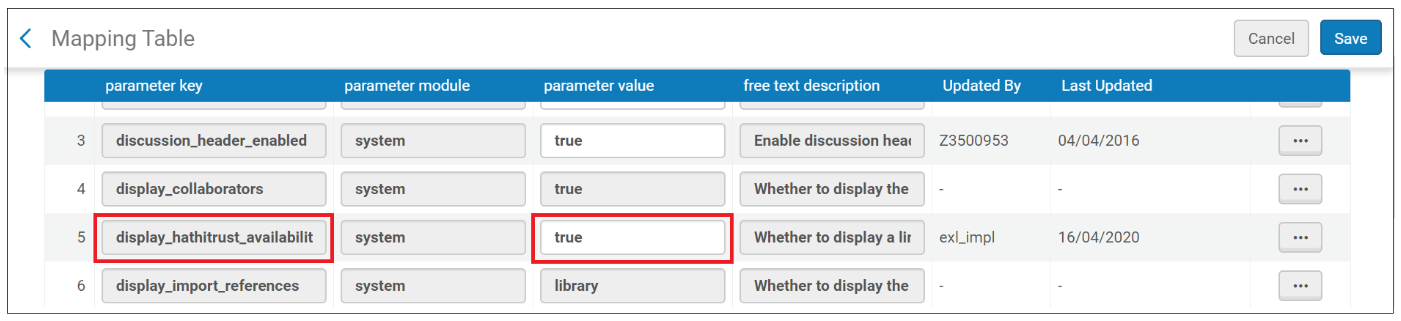
If you are a HathiTrust partner institution and want the link to HathiTrust to use HathiTrust's automatic login, set the parameter value to your SAML IDP entity ID instead of true.
The entity ID can either be a string, such as urn:mace:incommon:umn.edu, or it can be a URL, such as https://shibboleth.xxx.edu/idp/shibboleth.
Student Success Measurements
Your institution can opt to save usage statistics for individual students, which is viewable in Leganto by instructors, as well as collect analytics on individual student engagement with the reading list in the analytics engine. Librarians can view this data in Alma's analytics. For more information on the analytics engine, see Leganto Student Usage.
To opt in, the institution must sign the LEGANTO STUDENT SUCCESS MEASUREMENTS SERVICE Opt In form and send it to the Ex Libris support. Once the form is received, our support team enables this feature in our backend. You then receive an opt-in notice explaining the basic terms of this service. See Data Subject Rights for Leganto for information pertaining to your data subject rights.
Once the feature is turned on by our support team, the unique identifier of each user is stored along with the existing data in Leganto's analytics engine (see Leganto Student Usage). Historical data is kept anonymized, and only new student usage is tracked per unique identifier.
To enable usage statistics in Leganto, configure the list_analysis_student_usage parameter (Configuration > Leganto > Features > Leganto Features). The instructor can then select Per student in the list Analytics to view the usage data per student.
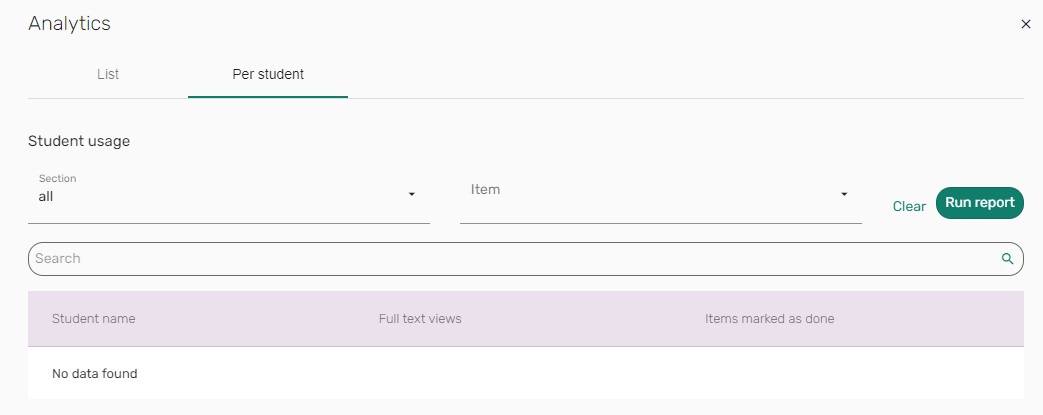
The instructor only sees the tab list if both list_analysis and list_analysis_student_usage parameters are enabled in the Leganto Features table. If only the list_analysis parameter is configured, then selecting the View lists analysis icon activates the Cumulative Usage function. If only the list_analysis_student_usage parameter is configured, then selecting the View lists analysis icon opens the Usage per Student display.
If Usage per Student is selected, then the Usage Per Student display opens with the following statistics per student:

- # of full text views of citations
- # of likes on citations
- # of citations marked as Done
You can filter the usage by section and by citation.
Once the Usage Per Student feature is enabled for the institution, any student has the right to be forgotten(according to GDPR guidelines). This means they can ask to delete their individual data. For this, the student needs to contact the library staff at the institution, who can then select Remove Leganto usage in the user screen in Alma:

Any user with a Patron role has this checkbox, but the Usage for Student is only recorded on actions that can be performed by students. Once this checkbox is checked, data is no longer collected on the student, and all past data on them is erased.
If your institution opted into the service, you can open a support ticket with Ex Libris to opt out of it.
Watch the Leganto Student Success Measurements video (1:25 minutes).
Integrating with Caliper Analytics
Caliper Analytics enables institutions to collect learning data from digital resources to better understand and visualize learning activity and product usage date. The data is then presented to students, instructors, and advisors effectively by providing the following information:
- Student recruitment and retention plans
- Program, curriculum, and course design
- Student intervention measures
To enable Caliper Analytics:
Configure caliper_endpoint(Configuration > Leganto > General > External Integrations) with your Caliper domain and caliper_token with your Caliper token for performing API requests (example:bf2a8619a98965e0a1a9d9eba86aa7). The events are then available for the student profile for the following:
- View list
- Citation
- Link
The extracted data can be used for predicting student success.
Page tags: article:topiccontent:Documentationproduct:legantolang:english
